
How MuscleDial works
Follow the app from first setup through daily use. This manual explains what each screen shows, what you can touch, how to log muscles, how Workout feeds the aqua map, how Guided and Self-Guided differ, what Timer records, and why Stats changes between By Muscle and By Exercise.
Start with the Training Window
The training window determines how the red By Muscle map evaluates consistency. Configure it in Settings → Training Window.
Choose the option that matches your normal rhythm
MuscleDial pairs each time window with a target number of logged sessions per muscle. A longer window deliberately uses a larger target.
What changing the window does
The same training history is reevaluated against the new target. A muscle can therefore look dimmer after moving to a longer window even though no data was deleted.
The Figure tab has two readings
Both readings use the same anatomy, but they answer different questions and are fed by different data.
The selected Figure reading also controls the Stats tab. If Figure is on By Muscle, Stats shows muscle-log statistics. If Figure is on By Exercise, Stats shows Workout statistics.
By Muscle
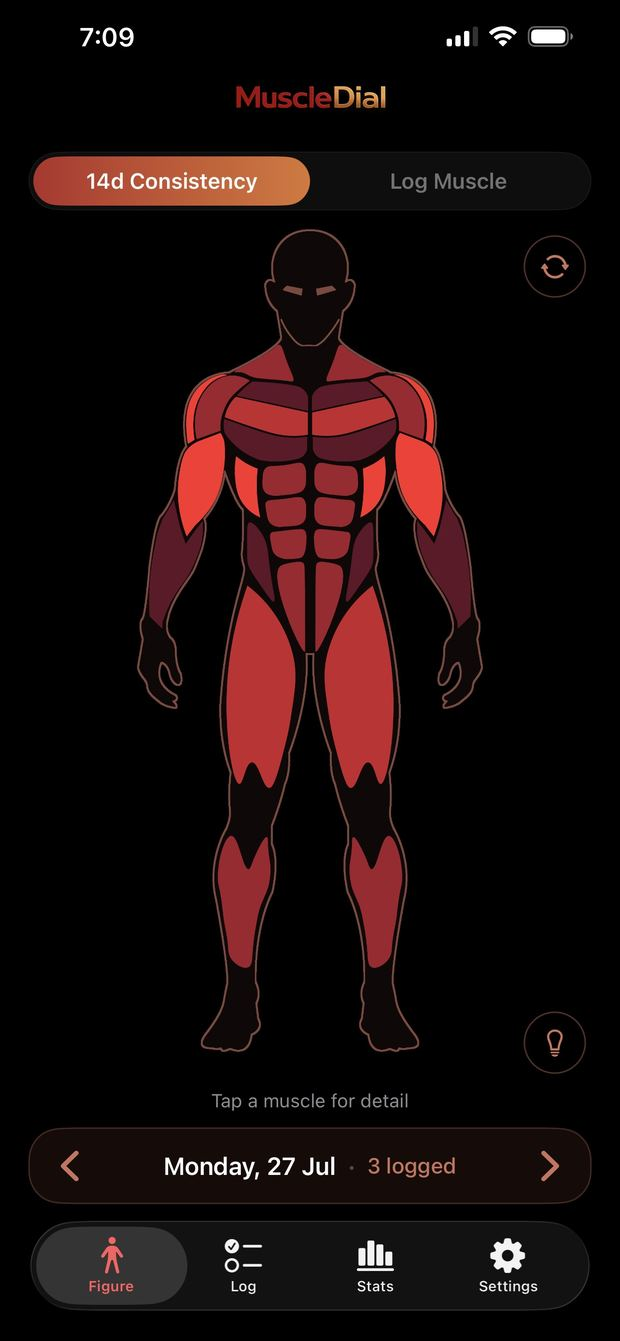
Use the red figure to see how consistently each muscle has been trained inside the window selected in Settings.
How to read it
- Subtle/dark red: little or no recent work.
- Stronger red: more logged sessions inside the current window.
- Full red: the muscle has reached the target for that window.
Normal taps do not log
In normal By Muscle mode, tapping the body opens detail for that muscle. It only becomes a logging surface after you explicitly tap Log by tap.
Use the rotate control to inspect the front and back views.
Register muscles: two manual methods
Both methods write to the same daily record. Choose the anatomical method or the list method depending on how you prefer to log.
Log by tap
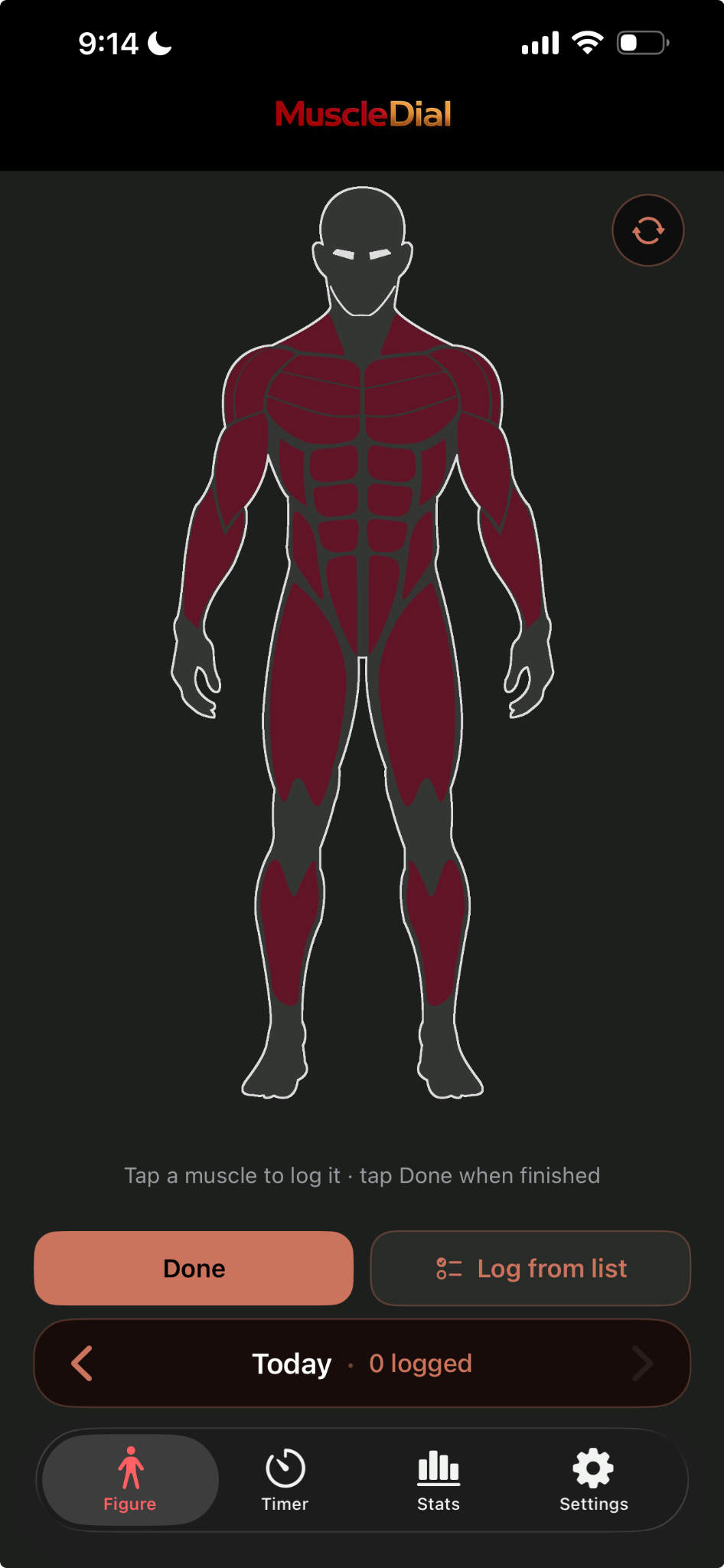
Open Figure → By Muscle and tap Log by tap.
The figure becomes a direct logging surface. Simply tap the muscle group you trained to register it for the selected day.
Tap the same muscle again if you want to remove it from the current day.
The bottom date bar shows the selected day and how many groups are logged. Use the left and right arrows to move through days inside the active training window.
Tap Done when you finish. This exits logging mode and returns the figure to normal viewing.
Log from list
Open Figure → By Muscle and tap Log from list.
Muscles are grouped by body area. Tap any subgroup to toggle it.
Use All on a group to select every subgroup in that group. It becomes Clear when the group is fully selected.
Use the same date stepper to log another day.
Clear this day removes all selected muscles for the current day after confirmation.
When to use each method
- Log by tap: fastest when you want to touch the body directly and mark worked areas one by one.
- Log from list: best when you prefer names instead of the figure, or when you want to work from grouped lists.
- Both methods write into the same By Muscle history for that day.
Lightbulb: muscles that need attention
The lightbulb is an attention tool for By Muscle. It does not create a workout and it does not record data.
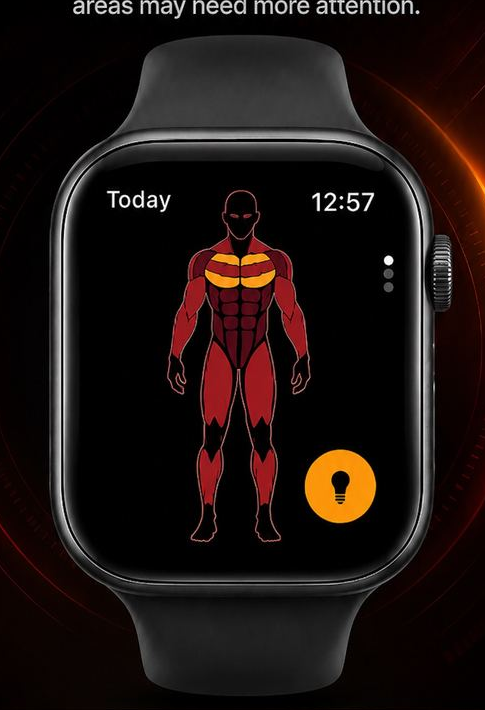
- When history exists, MuscleDial ranks the muscles that have gone the longest without work and highlights up to five subgroups.
- The anatomy is always represented bilaterally for the selected subgroup.
- On a new history, every muscle is tied at zero; the whole figure can light instead of showing an arbitrary ranking.
- The highlight disappears automatically after about five seconds.
By Exercise
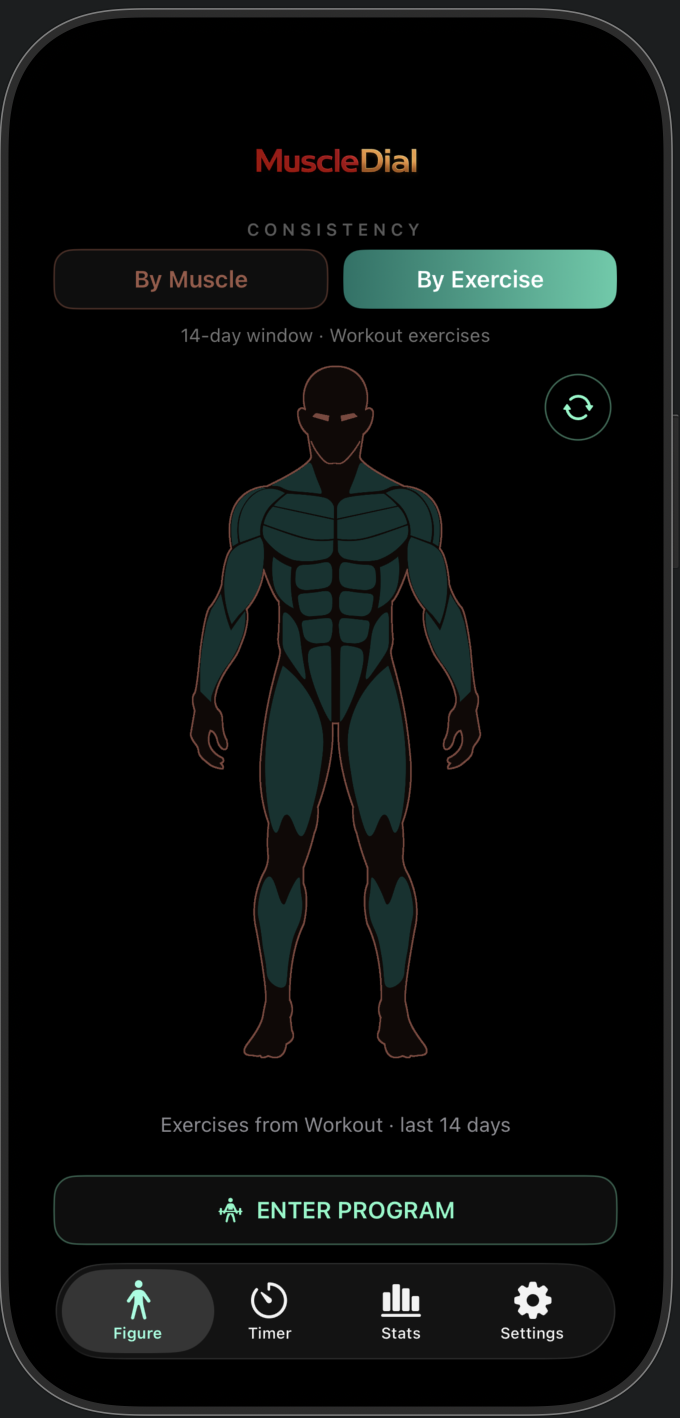
The aqua figure measures what has actually been executed inside Workout during the most recent 14 days.
How the aqua intensity works
Each executed exercise contributes to the muscle subgroups associated with that exercise. The count is evaluated per subgroup over the last 14 days.
- No Workout exercises → darkest aqua.
- More executed exercises → stronger aqua.
- 6 executed exercises for a subgroup → current full-intensity target.
What you can do here
By Exercise is a read-only progress view. Tap a muscle for its Workout detail, rotate the body to see the back, or tap ENTER PROGRAM to open Workout Programs.
Workout Programs
ENTER PROGRAM opens two different ways to organize exercise-based training.
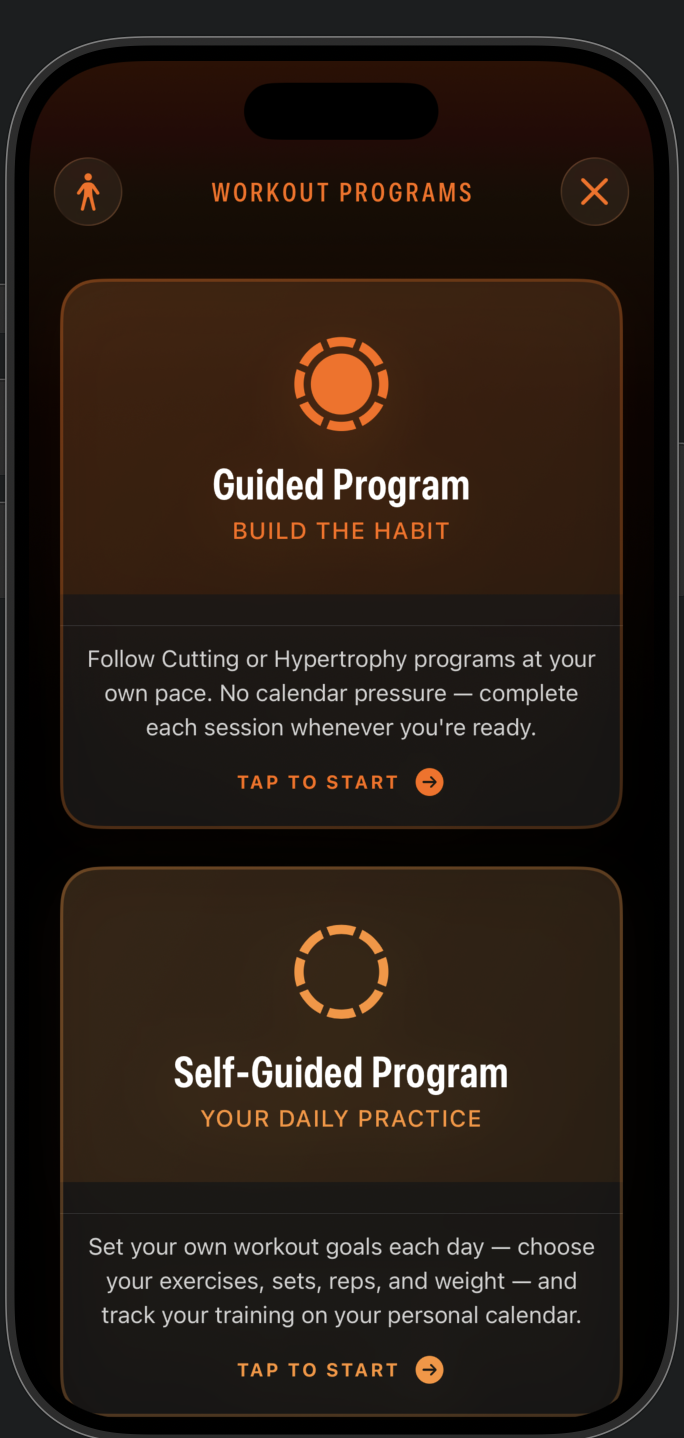
Guided Program
MuscleDial supplies the program structure. Choose Cutting or Hypertrophy and progress through the sessions at your own pace. There is no calendar pressure to complete a specific workout on a specific date.
Self-Guided Program
You control the weekly routine and individual exercises. Plan each training day, choose exercises, then define sets, reps, weight and rest.
Guided Program
Guided contains two built-in four-week programs and tracks progression session by session.
| Program | Purpose | Current guidance |
|---|---|---|
| Cutting | Higher-rep training designed to support fat loss while preserving lean muscle. | 10–15 reps · 60–75s rest · RIR 2 |
| Hypertrophy | Progressive overload focused on muscle growth through compound movements and controlled volume. | 8–12 reps · 90–120s rest · RIR 1–2 |
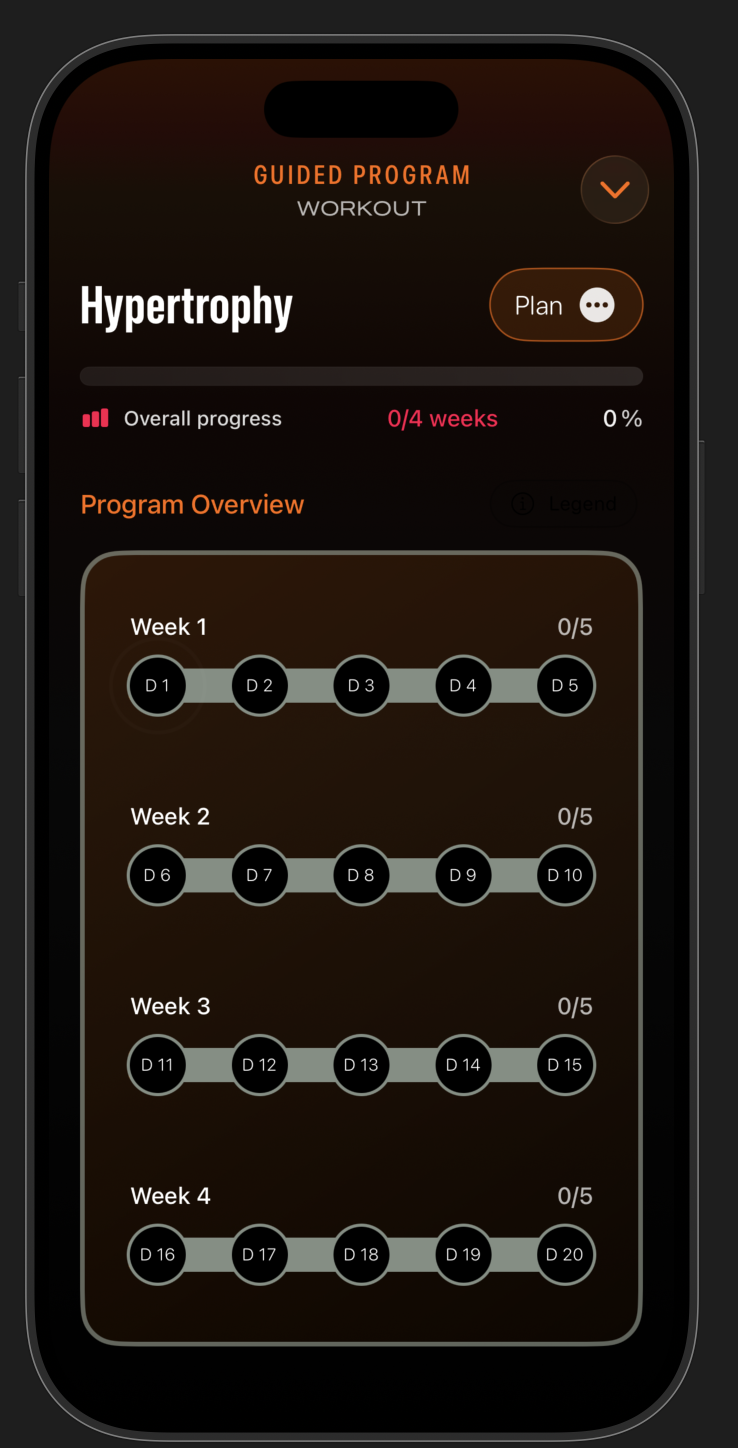
Program Overview
- Current plan and current week.
- Overall completion percentage and completed weeks.
- Week 1 through Week 4.
- Completion state for each workout day.
- Recent completed sessions.
Switching to the other Guided plan can pause the current plan so it can be resumed later with its stored progress.
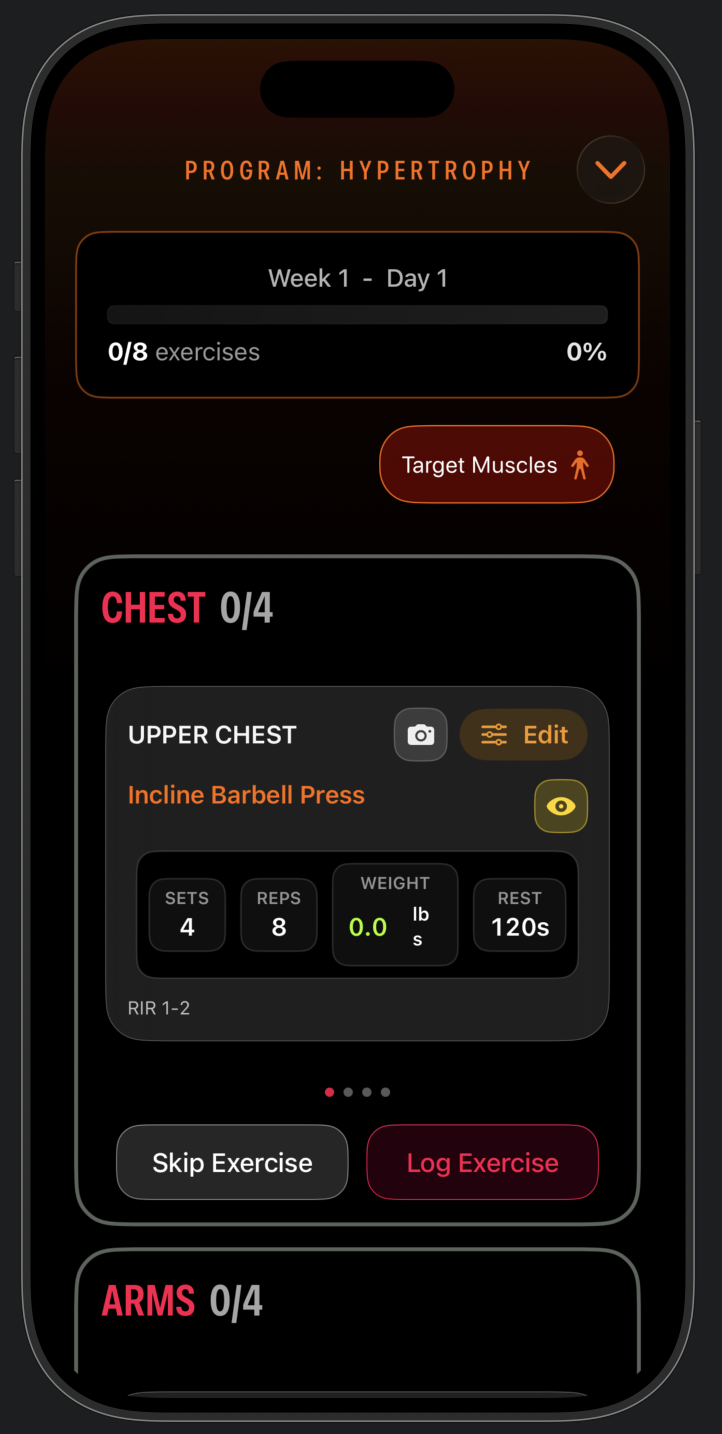
During a workout day
- Review the session’s target muscles.
- Work through exercise cards grouped by muscle area.
- Edit sets, reps, weight and rest when needed.
- Tap the eye/reference control for the exercise reference.
- Tap Log Exercise when completed.
- Use Skip Exercise when you are not performing it.
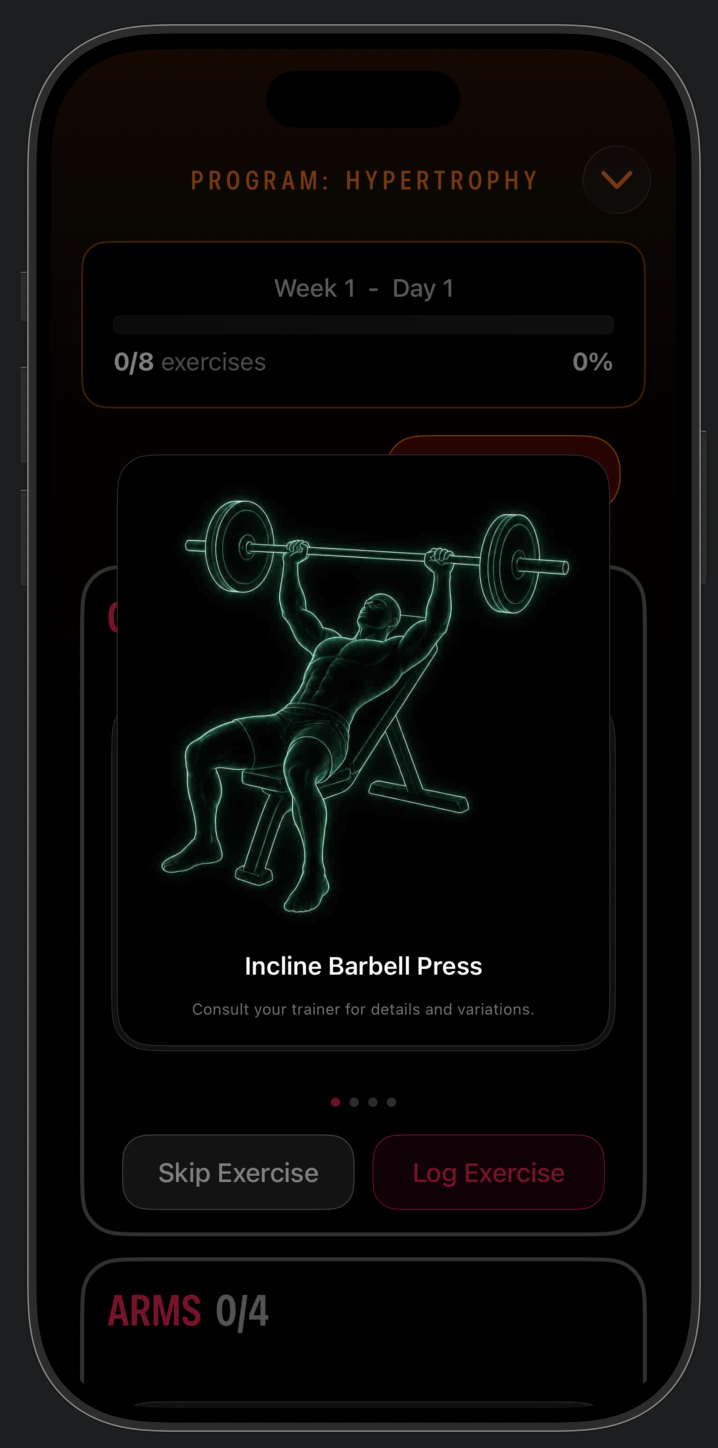
Exercise reference
The reference overlay helps identify the movement. MuscleDial also has a separate personal-reference function that can keep a private photo taken with the camera or selected from the photo library for an exercise.
Self-Guided Program
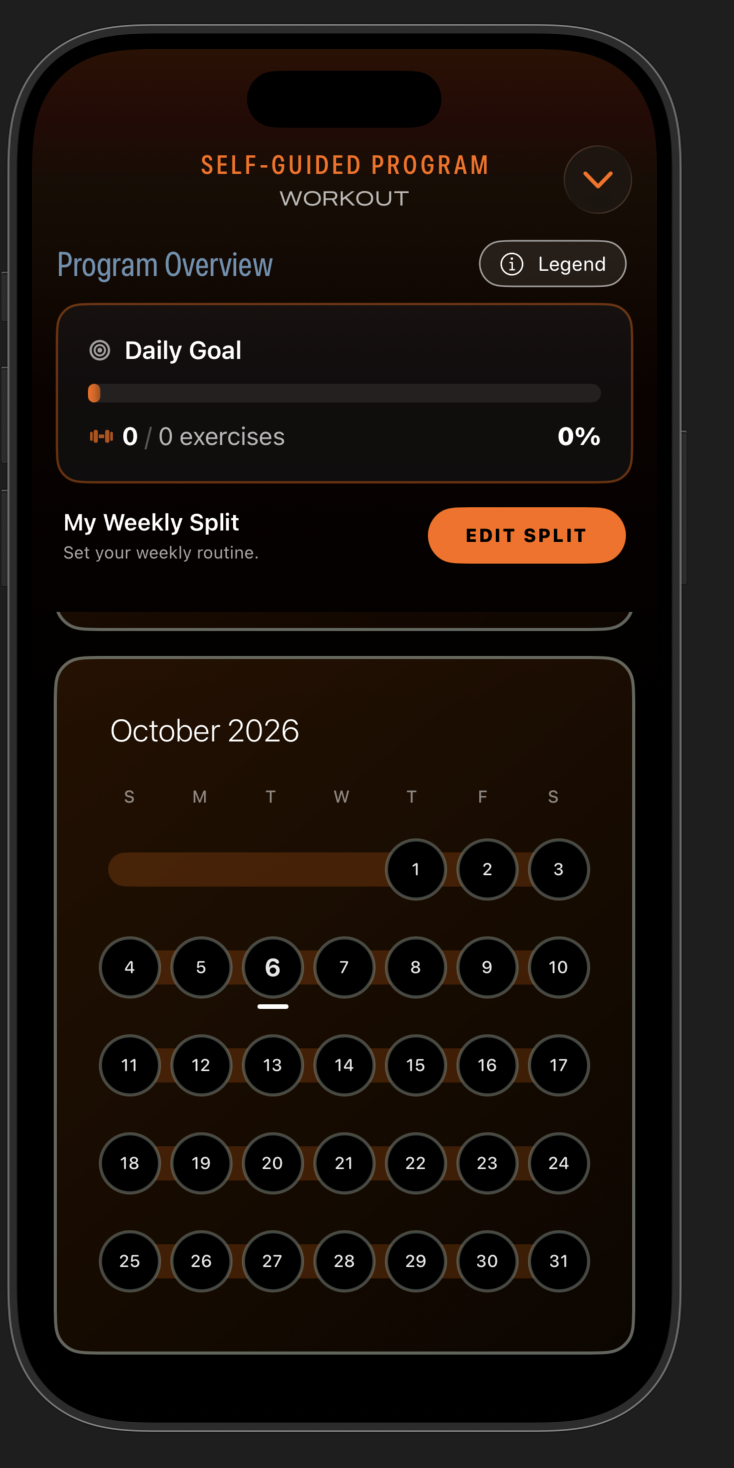
Use Self-Guided when you want the calendar and tracking system but prefer to define the routine yourself.
Build the weekly structure
Tap Edit Split. Start from a preset or choose Build my own. Presets can then be assigned to specific weekdays and applied to the calendar for the selected duration.
| Preset | Frequency |
|---|---|
| Total Body | 3 days/week |
| Top & Bottom | 4 days/week |
| Push · Pull · Legs | 5 days/week |
| One Muscle a Day | 5 days/week |
| Six Day Grind | 6 days/week |
Plan and execute each day
A planned day can contain one or more muscle groups and multiple exercises. Define sets, reps, weight and rest for each exercise. On the training day, open the execution sheet and log exercises as they are completed. Future execution sheets are view-only; edit the routine through the planning/calendar flow.
Timer
Timer tracks workout duration separately from the muscle maps.
Today’s Time Goal
Choose Gym or Cardio, then set the day’s target using hours, minutes and seconds. The saved duration is also written to the Workout calendar goal data.
Two timer modes
Stats: two data systems
Stats intentionally changes when you switch the Figure reading.
By Muscle Stats
- Balance
- Current streak
- Active days in the selected 7/14/21/28-day window
- Balance by Group
- Rhythm inside the current window
- Trend · Last 12 Weeks, with group filter
- Longest Without Work
By Exercise / Workout Stats
- Period selector: 7D / 30D / 12M
- Total sessions, top group, least-trained group
- Muscle Frequency
- Daily Sessions / Monthly Sessions
- Training Distribution
- Year over Year
- 13-week Training Heatmap
Apple Watch
The Watch keeps the core muscle map and logging functions available on the wrist and synchronizes them with the iPhone.
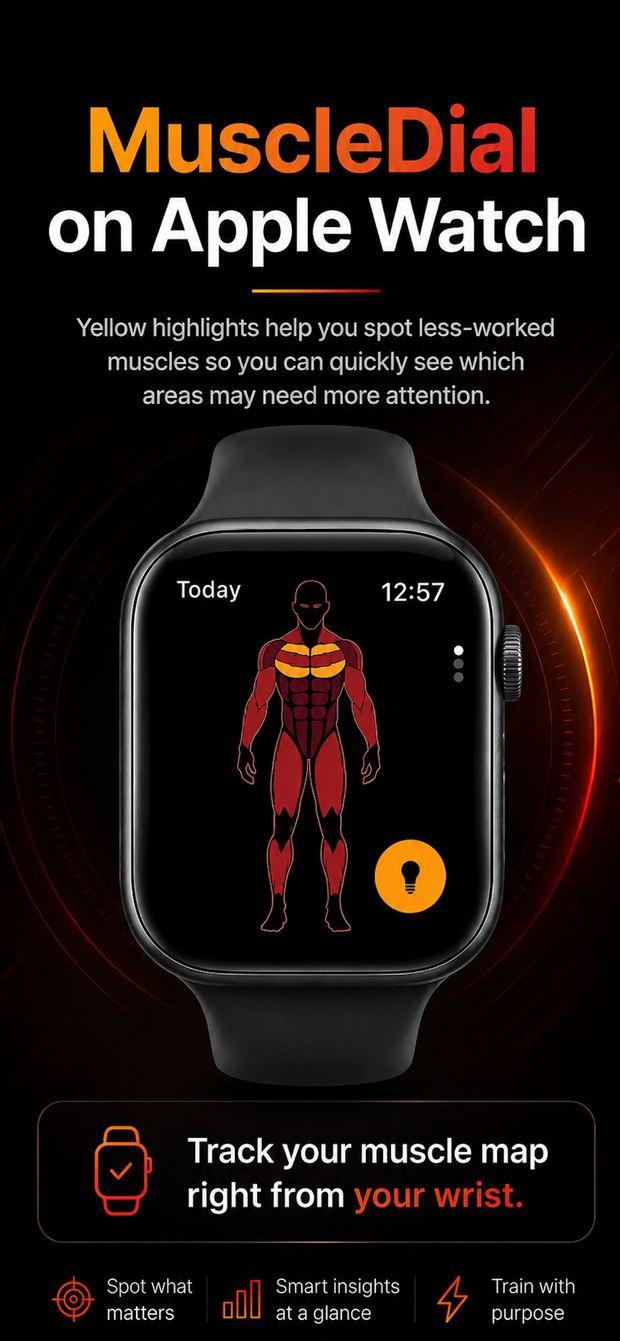
- Red consistency figure using the same configured By Muscle window.
- Watch logging screen for muscle groups and subgroups.
- Today screen showing what is logged and allowing the day to be cleared.
- Aqua Workout figure when Workout access is available.
Workout history remains on the iPhone. The phone produces the 14-day Workout snapshot and sends the counts required for the Watch to draw the aqua figure.
The Training Window preference is synchronized so iPhone and Watch evaluate By Muscle with the same window.
Settings, backup and data
Settings contains the controls that affect MuscleDial as a whole.
Settings includes
- Plan status and Restore Purchases.
- Training Window.
- iCloud backup information.
- Support, Privacy Policy, Terms of Use and app version.
- Delete all data.
iCloud and Delete all data
When iCloud is enabled for MuscleDial, history is backed up and synchronized across devices. The actual iCloud control lives in System Settings under the Apple Account.
Delete all data removes logged days and Workout data from the iPhone, Apple Watch and iCloud and cannot be undone.
Common questions
The behaviors below are intentional and follow directly from MuscleDial’s two tracking systems.
Why did red muscles become dimmer after I changed the window?
A longer window has a larger full-intensity target. Your training history was not deleted; the same data is being evaluated against a larger target.
Why is By Exercise always 14 days?
By Exercise is a separate Workout metric. It always evaluates the most recent 14 days and reaches full aqua intensity at six executed exercises per muscle subgroup.
Do I need to log Guided or Self-Guided workouts again in By Muscle?
No. Completed Workout exercises automatically mark the associated muscles on the By Muscle day log. MuscleDial presents a one-time notice about this bridge.
Can I tap the red figure to log without selecting Log by tap?
No. A normal tap inspects that muscle. Select Log by tap first to change the figure into a logging surface.
Are yellow suggestions a workout prescription?
No. They identify least-worked areas from recorded history only. They do not consider fatigue, injury, recovery or your planned session.
Why do Stats change after I switch Figure readings?
By Muscle and By Exercise use different data. Stats follows the currently selected Figure reading so each system is analyzed on its own terms.